OTA Update For Configured Devices
The prerequisite for updating configured device is that the device is provisioned through the application, so if you haven't provisioned your device yet, please refer to the Provisioning part of this documentation in order to provision it correctly.
Once we got that out of the way, we can start updating our device.
OTA updates are done on per-network basis, so first we should select the project where the network we want to update is located. Next, click on the network, and then from network settings we can select "Update devices".
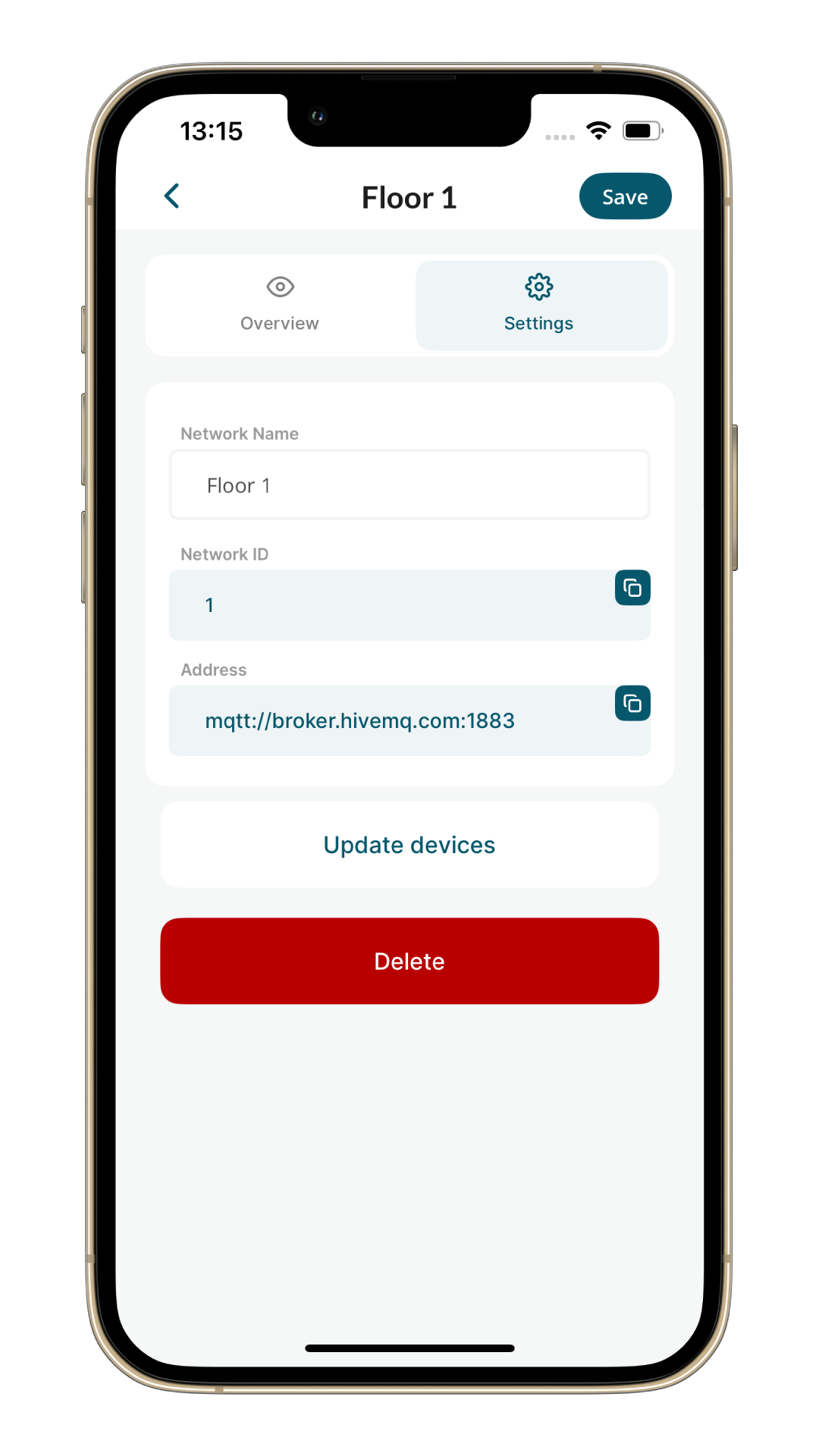
Now, you should go ahead and enable hotspot on your device.
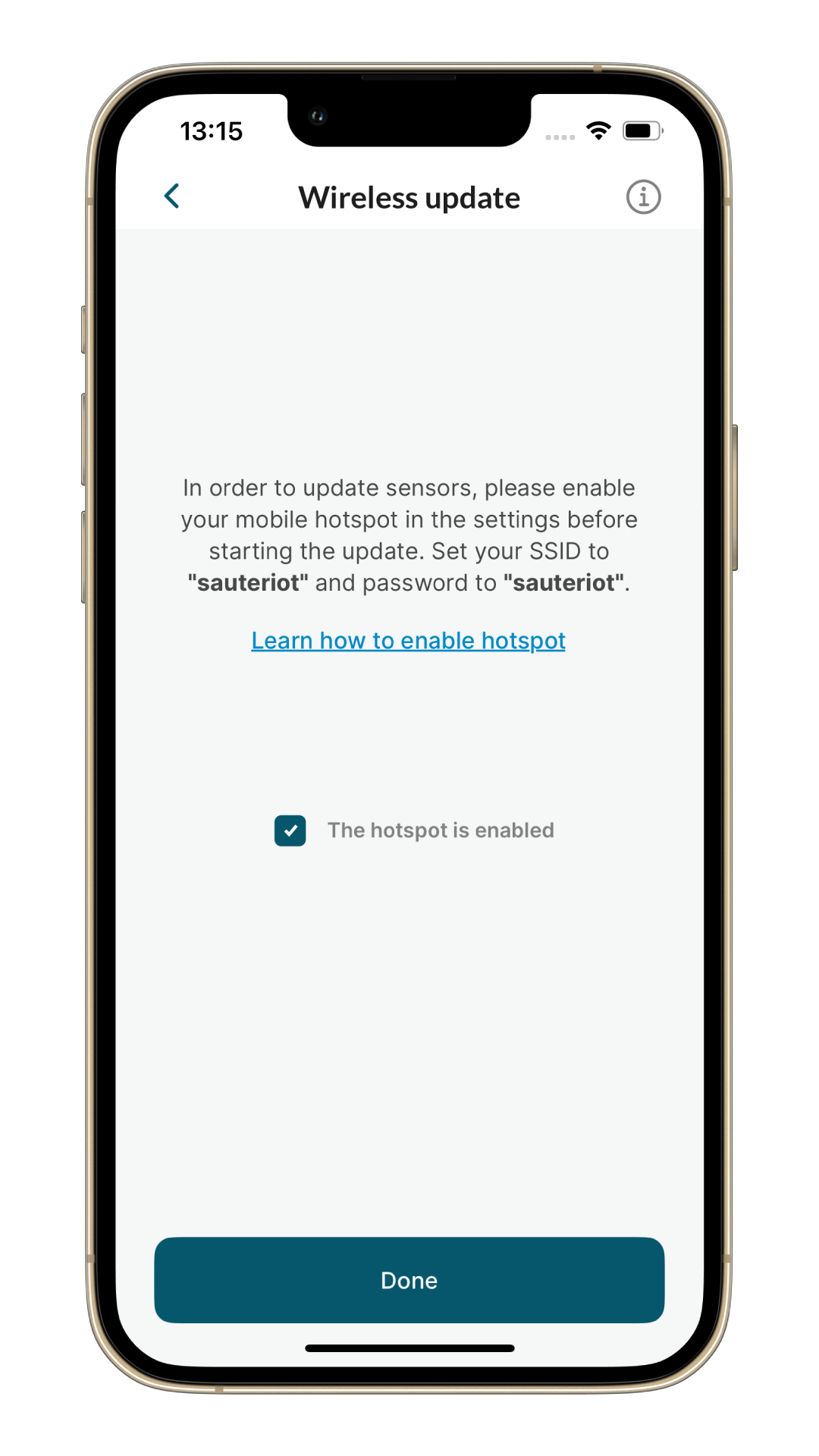
While updating the firmware your hotspot name (SSID) and password should always be sauteriot!
Learn how to enable hotspot on your device
Instructions for enabling hotspot on your device are available in the app by clicking on the "Learn how to enable hotspot" link, but you can also check how to do it here:
- iOS
- Android
- Open your settings and go to General

- Go to About

- Go to Name

- Change name to sauteriot

- Go back to main settings and go to Personal Hotspot

- Set password to sauteriot and turn on Allow Others to Join

- Turn on Maximise Compatibility

- You're all set. Now, you can return to the application and update the devices.
- Open your settings and go to Network & internet

- Go to Hotspot & tethering

- Go to Wi-Fi hotspot
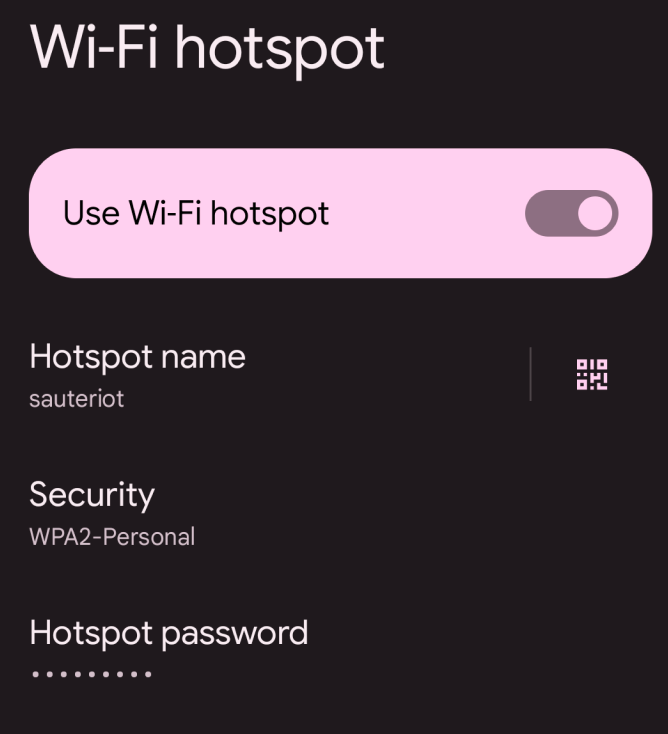
- Set Hotpost name and Hotspot password to sauteriot, and turn on Use Wi-Fi hotspot toggle
- You're all set. Now, you can return to the application and update the devices.
There are multiple hardware versions (or, as we call them, hardware indexes) of viaSens devices available, and they will grow in the future as we add new hardware features. If you have a small number of viaSens devices and you bought them at the same time, you will probably have only one hardware index.
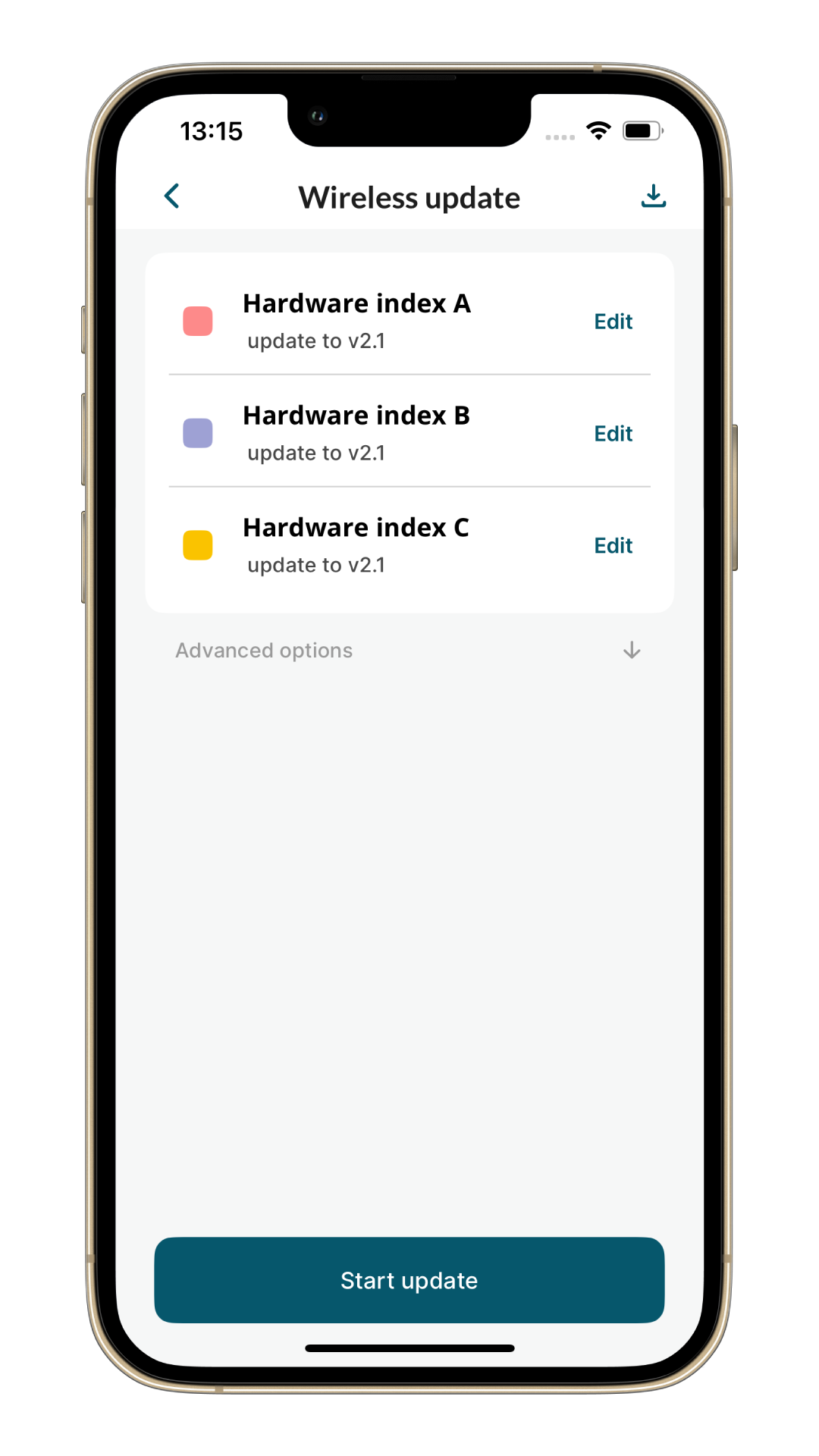
The application will display available firmwares for hardware versions of the devices you have provisioned based on the XML file downloaded from the server. The latest firmware version available for each hardware index will automatically be selected, but if you don't want to update to the latest version, you can select other versions by clicking the "Edit" button.
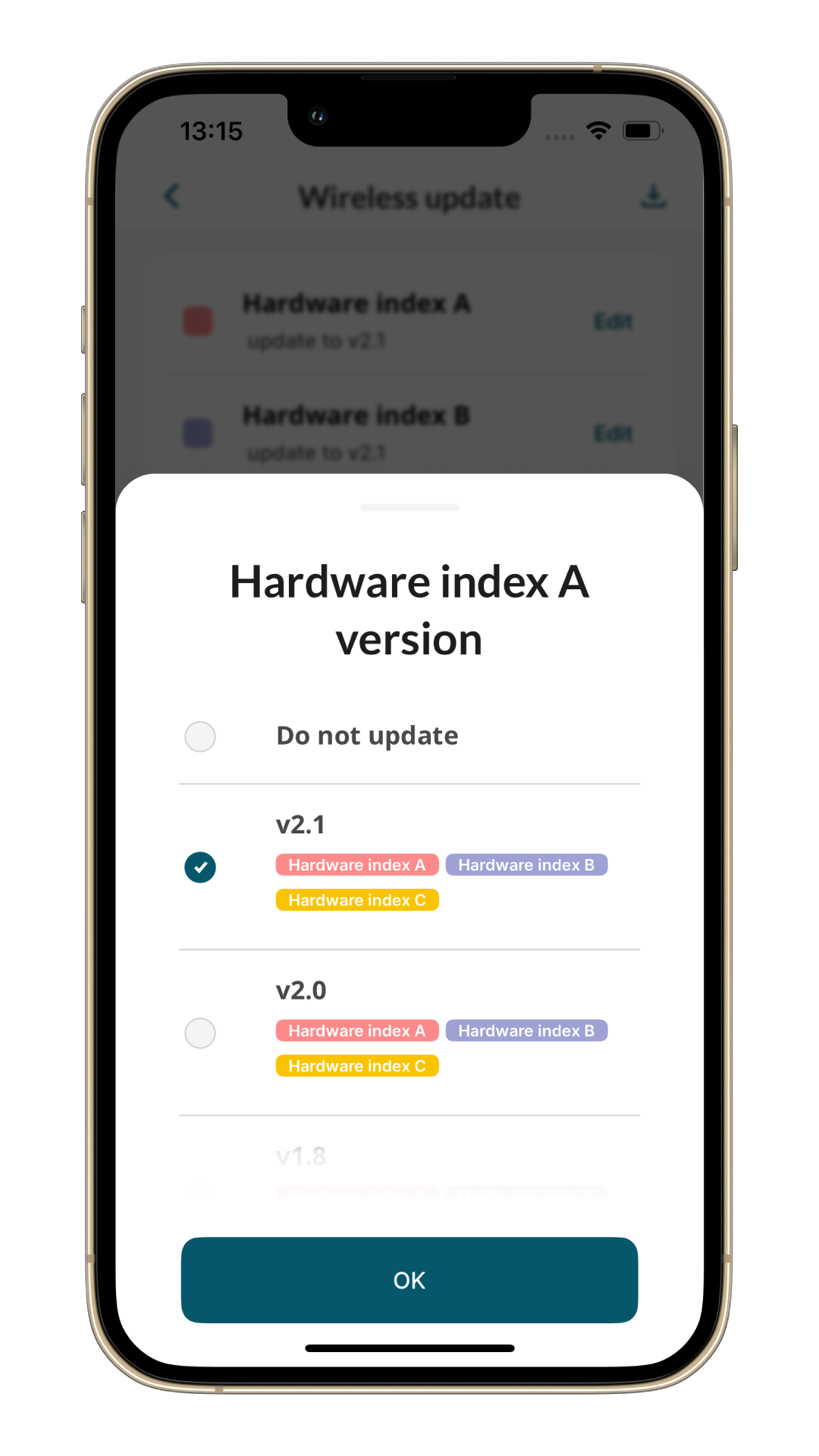
viaSens devices can't be downgraded through the application.
For example, if one of your devices has firmware version v1.5, and you select v1.3 in the dropdown, only devices that have firmware version older than v1.3 will get updated, and device with version v1.5 will stay at that version.
Finally, you can click on the "Start update" button and the application will start updating your devices.
There are two types of OTA update:
- Firmware v2.3 or newer – if all devices in the network are running firmware v2.3 or newer, they support an advanced update method with additional status tracking via a REST server on your mobile device.
- Older firmware – if devices are running older firmware, they only support the standard beacon-based OTA update.
Choose the option that applies to your network.
- Firmware v2.3+
- Older Firmware
Here's an example of OTA update with firmware v2.3, which supports additional status tracking via a REST server running on your mobile device.
This allows monitoring the exact moments when the sensor:
- connects to the access point,
- starts downloading firmware from the server,
- begins the update process,
- completes the update.
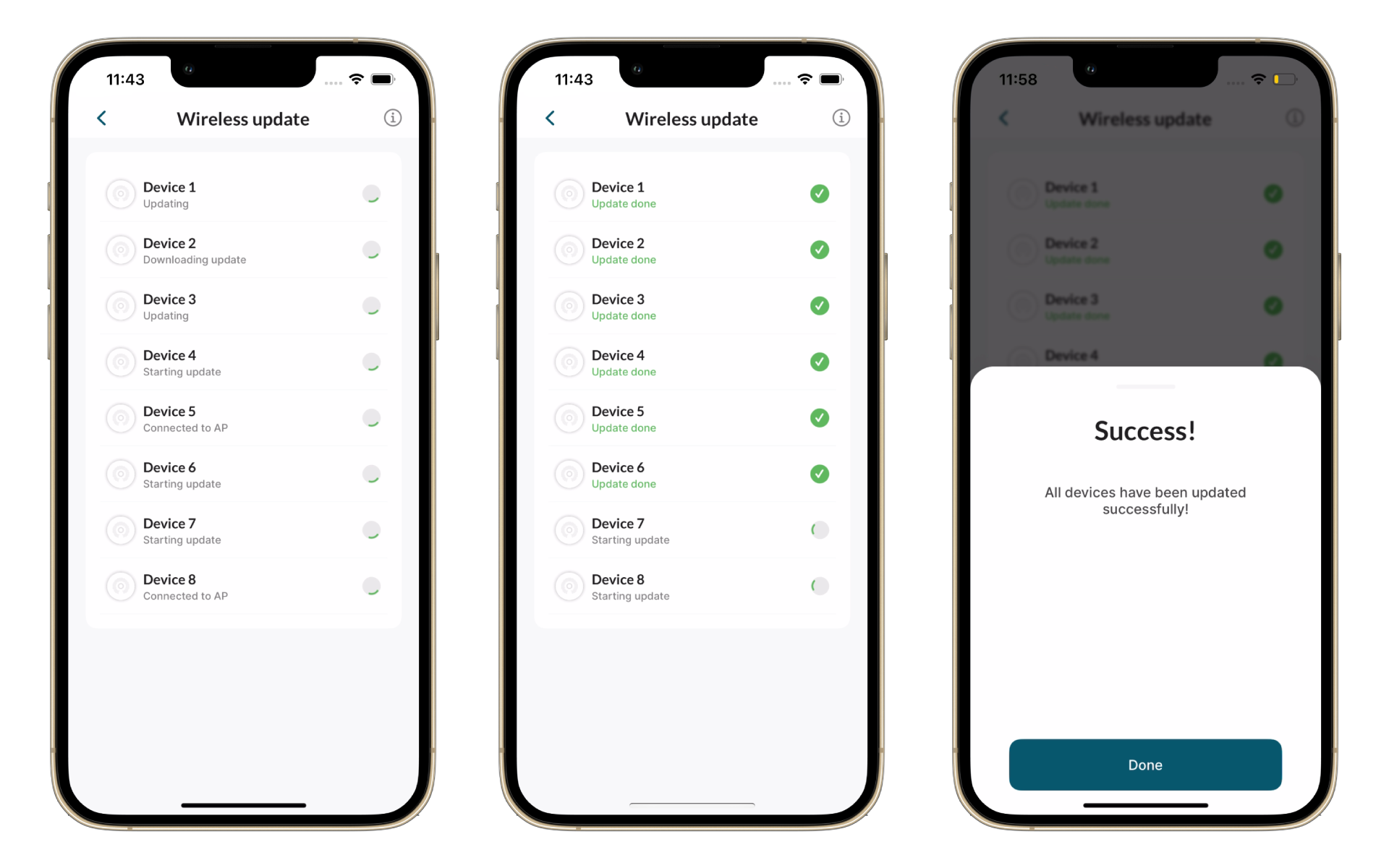
At the beginning of the update, an orange chasing animation will be shown on the device. Once the update is finished, the device will reboot. If the update fails, the device will show a red chasing animation for an hour.
For older firmware versions, the app only sends beacon signals.
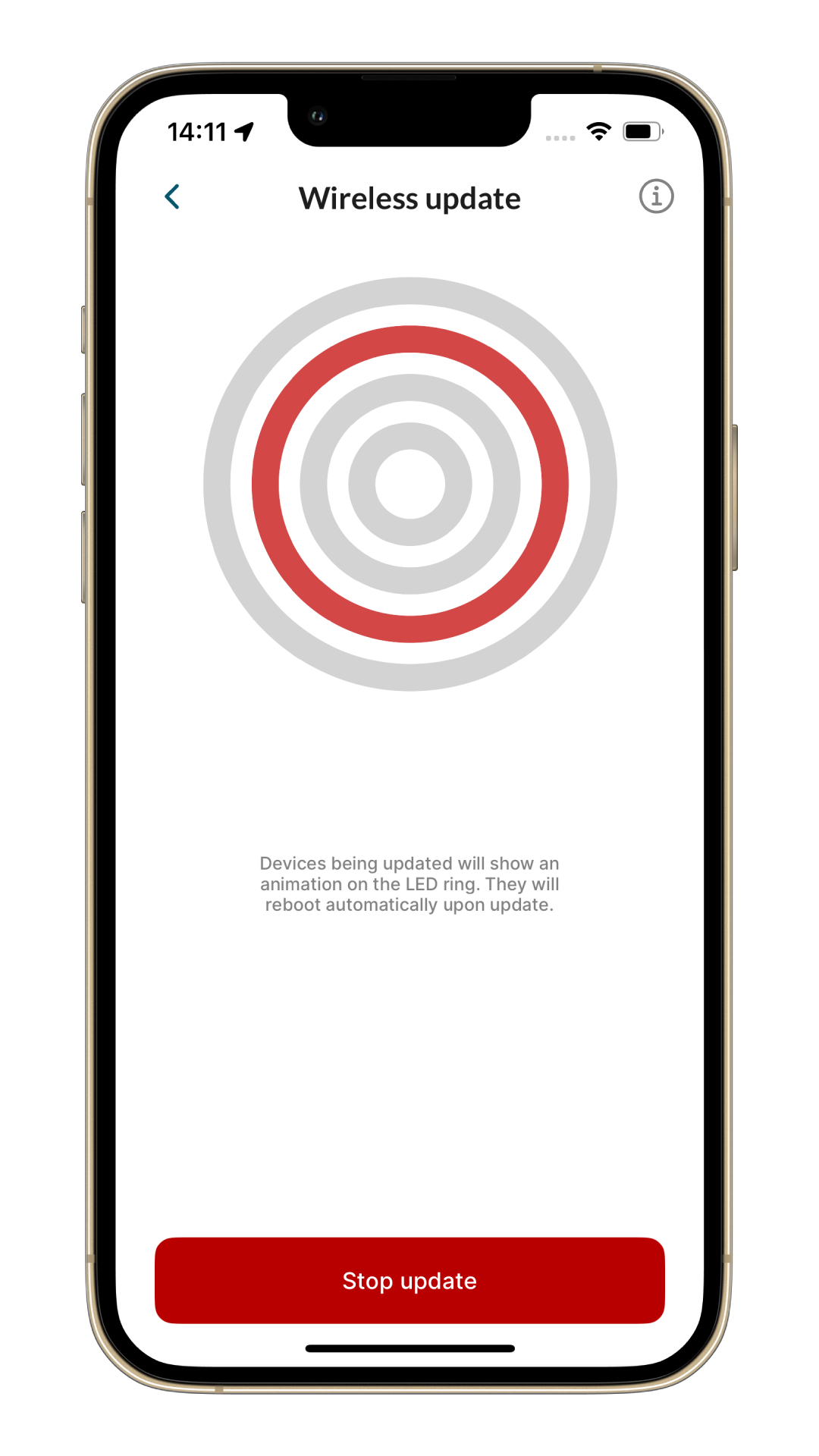
At the beginning of the update, orange chasing animation will be shown on the device, and once the update is finished, the device will reboot. If the update fails, the device will show a red chasing animation for an hour