OTA Update For Unprovisioned Devices
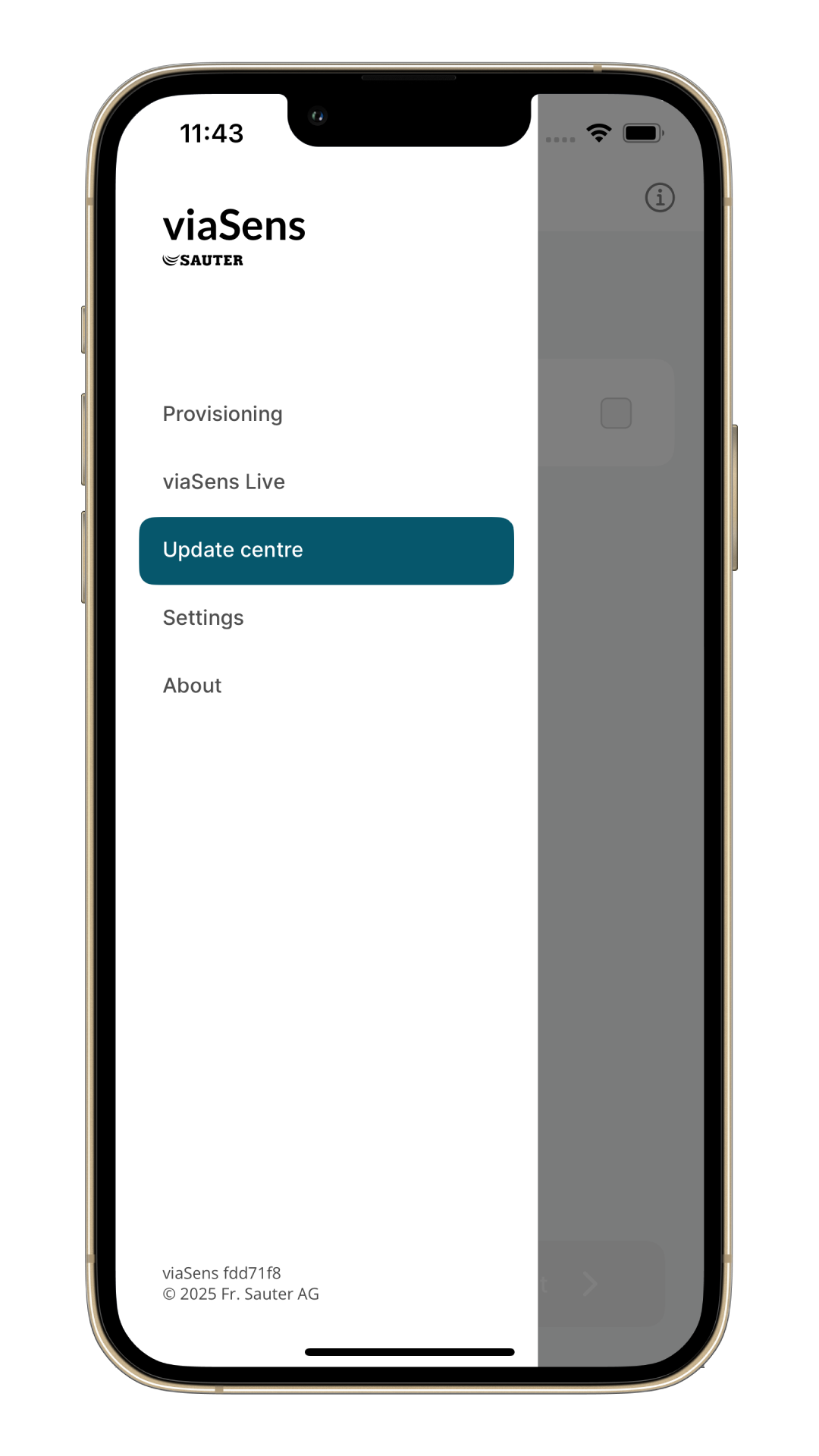
This mode allows updating unprovisioned devices via the Update Center. In the navigation bar of the mobile app, go to Update centre.
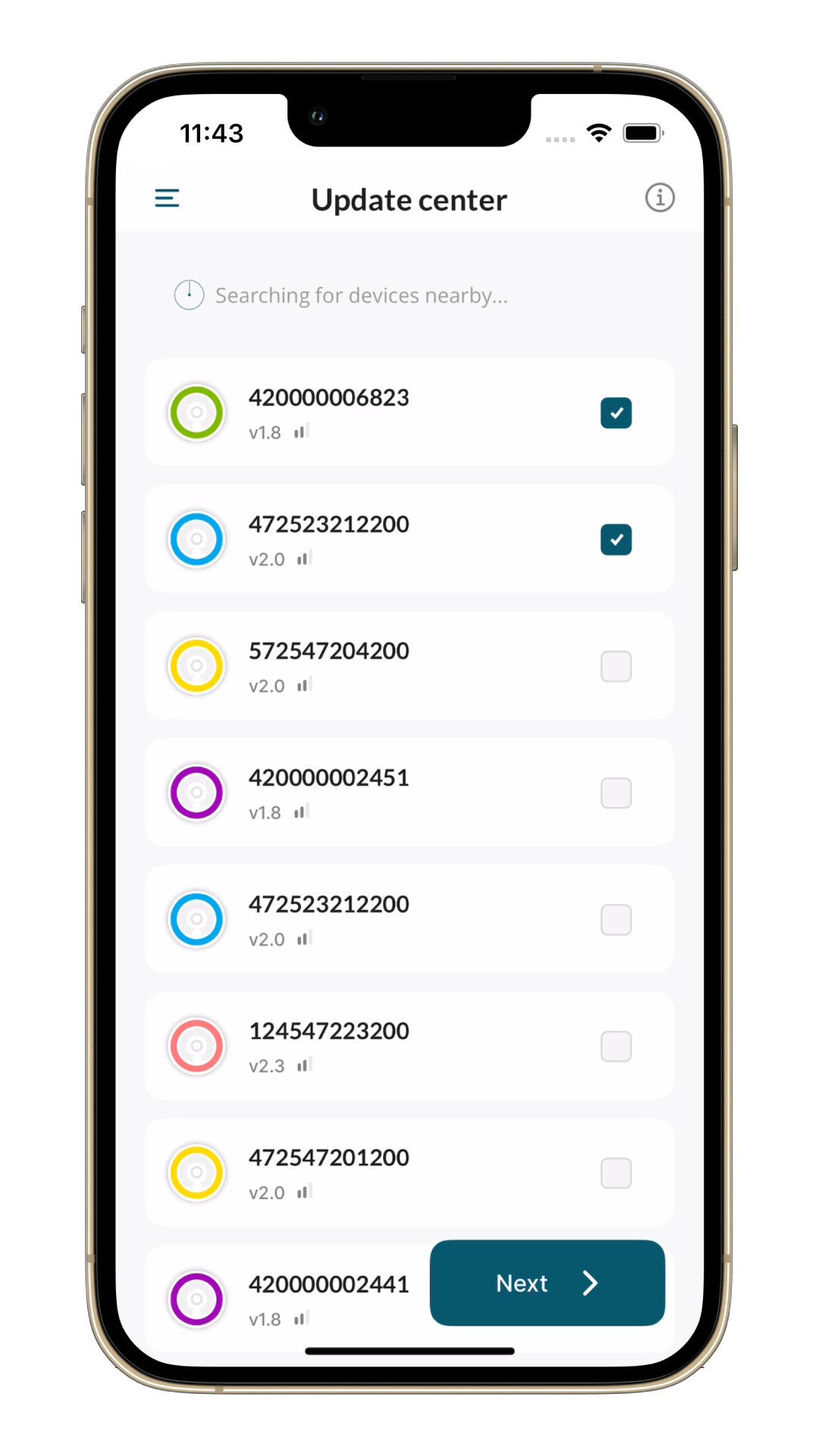
The next step is to select the sensors you want to update.
Now, you should go ahead and enable hotspot on your device.
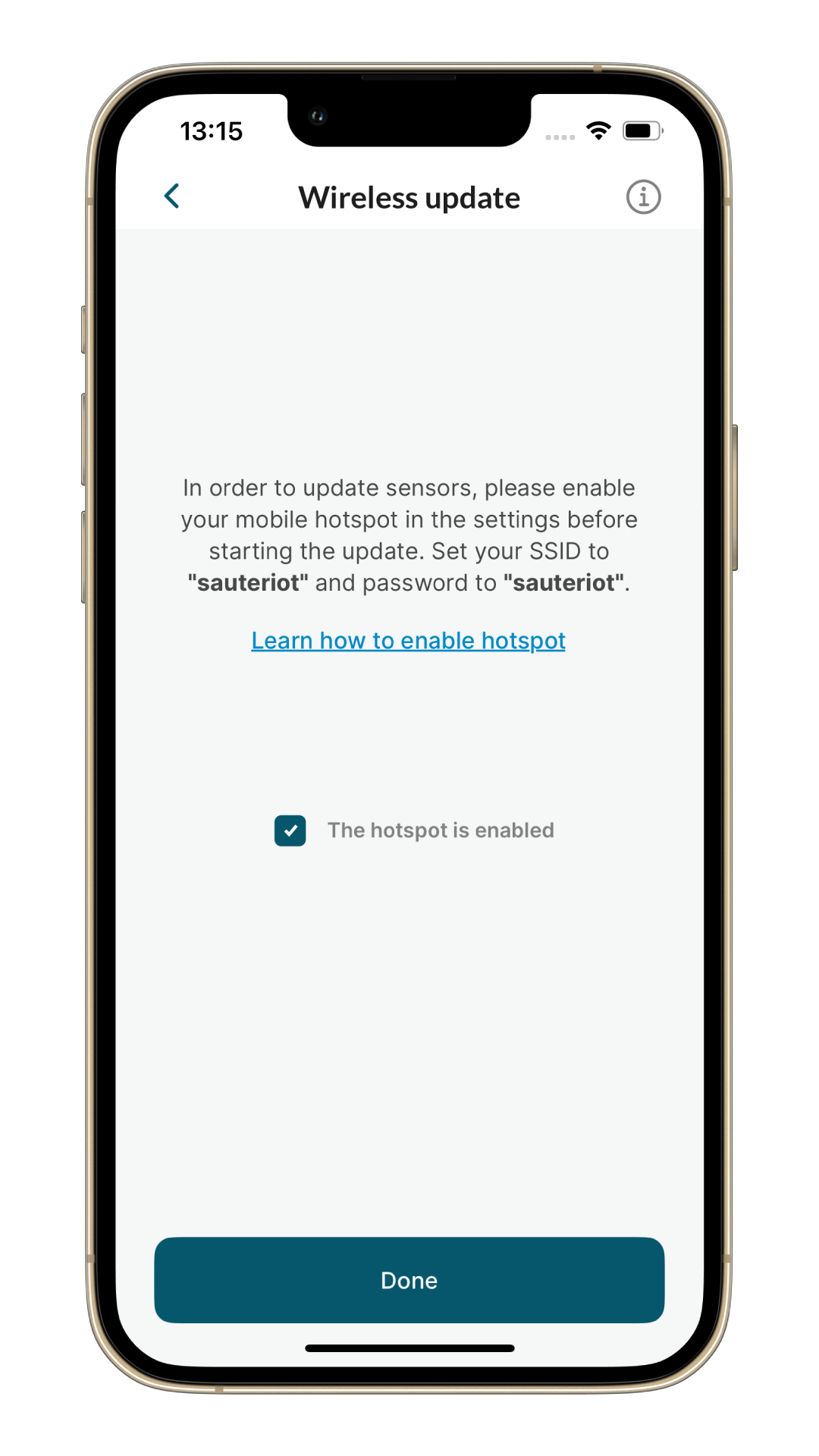
While updating the firmware your hotspot name (SSID) and password should always be sauteriot!
Learn how to enable hotspot on your device
Instructions for enabling hotspot on your device are available in the app by clicking on the "Learn how to enable hotspot" link, but you can also check how to do it here:
- iOS
- Android
- Open your settings and go to General

- Go to About

- Go to Name

- Change name to sauteriot

- Go back to main settings and go to Personal Hotspot

- Set password to sauteriot and turn on Allow Others to Join

- Turn on Maximise Compatibility

- You're all set. Now, you can return to the application and update the devices.
- Open your settings and go to Network & internet

- Go to Hotspot & tethering

- Go to Wi-Fi hotspot
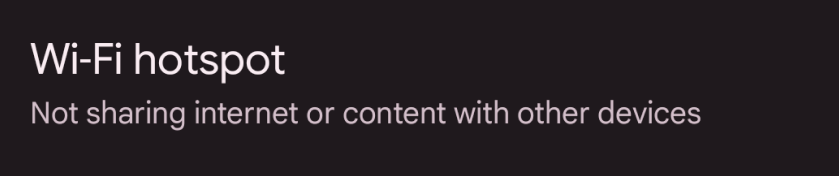
- Set Hotpost name and Hotspot password to sauteriot, and turn on Use Wi-Fi hotspot toggle
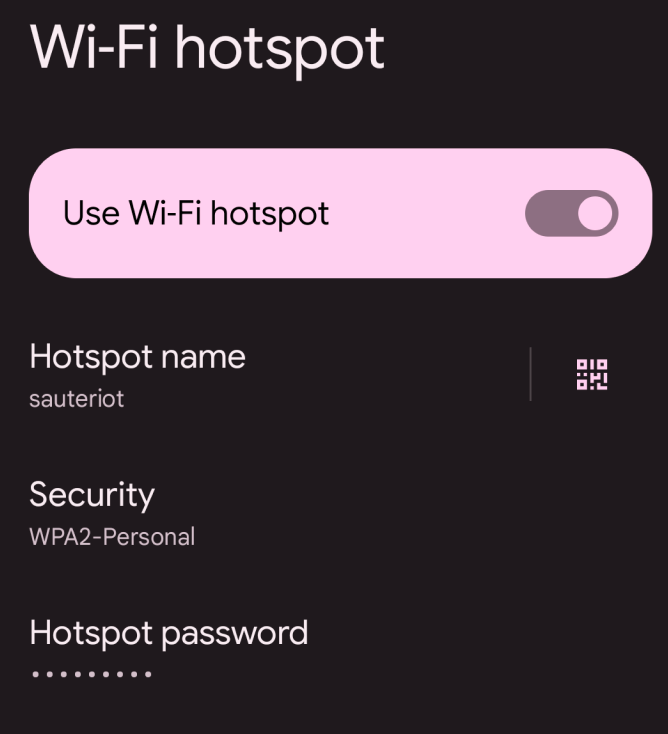
- You're all set. Now, you can return to the application and update the devices.
Then, select the firmware version you want to update to.
There are multiple hardware versions (or, as we call them, hardware indexes) of viaSens devices available, and they will grow in the future as we add new hardware features. If you have a small number of viaSens devices and you bought them at the same time, you will probably have only one hardware index.
Unprovisioned OTA updates work only for devices with firmware >= v2.0.
The minimum firmware version for update is v2.0 and higher.
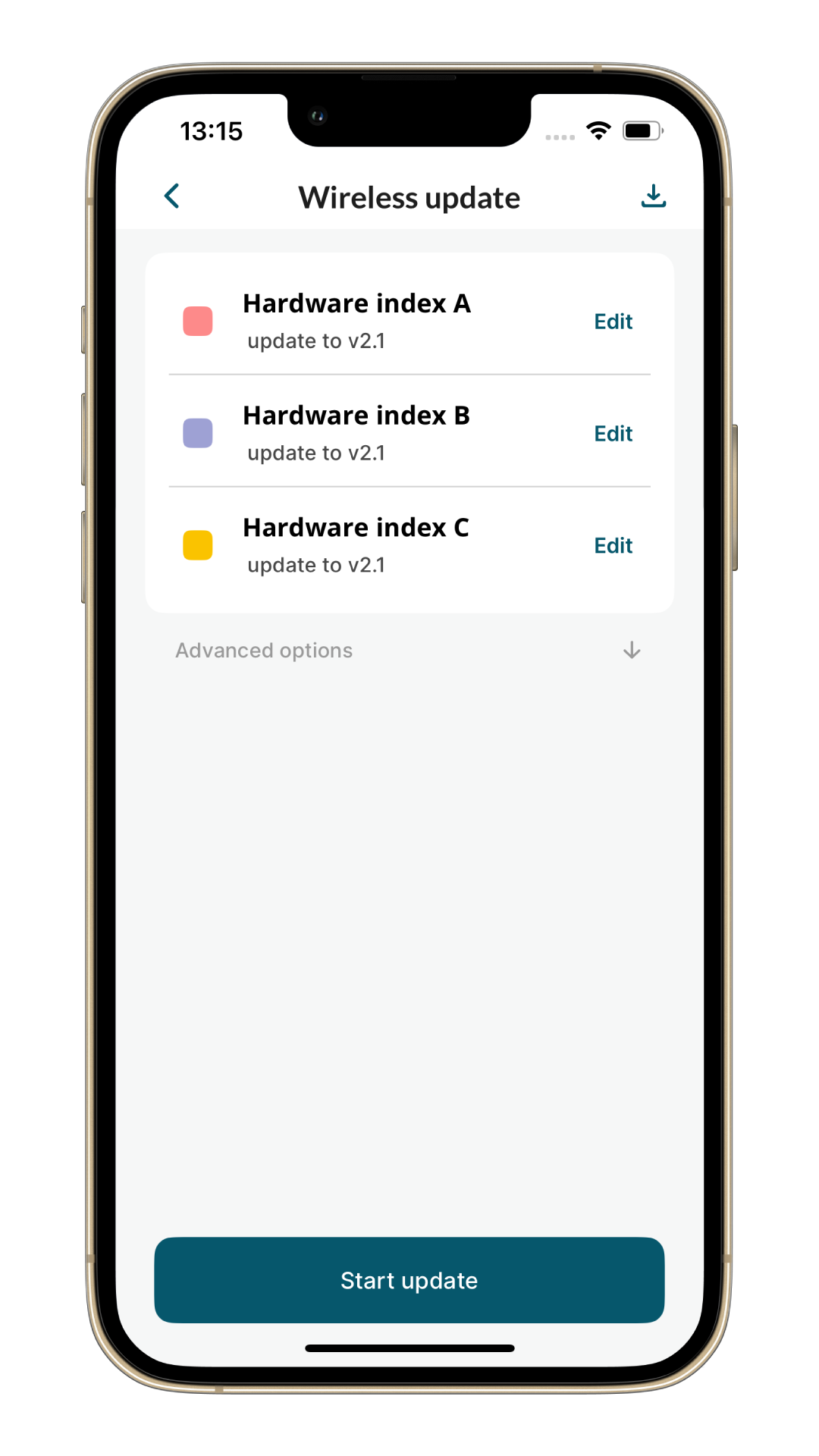
The application will display available firmwares for hardware versions of the devices you have provisioned based on the XML file downloaded from the server. The latest firmware version available for each hardware index will automatically be selected, but if you don't want to update to the latest version, you can select other versions by clicking the "Edit" button.
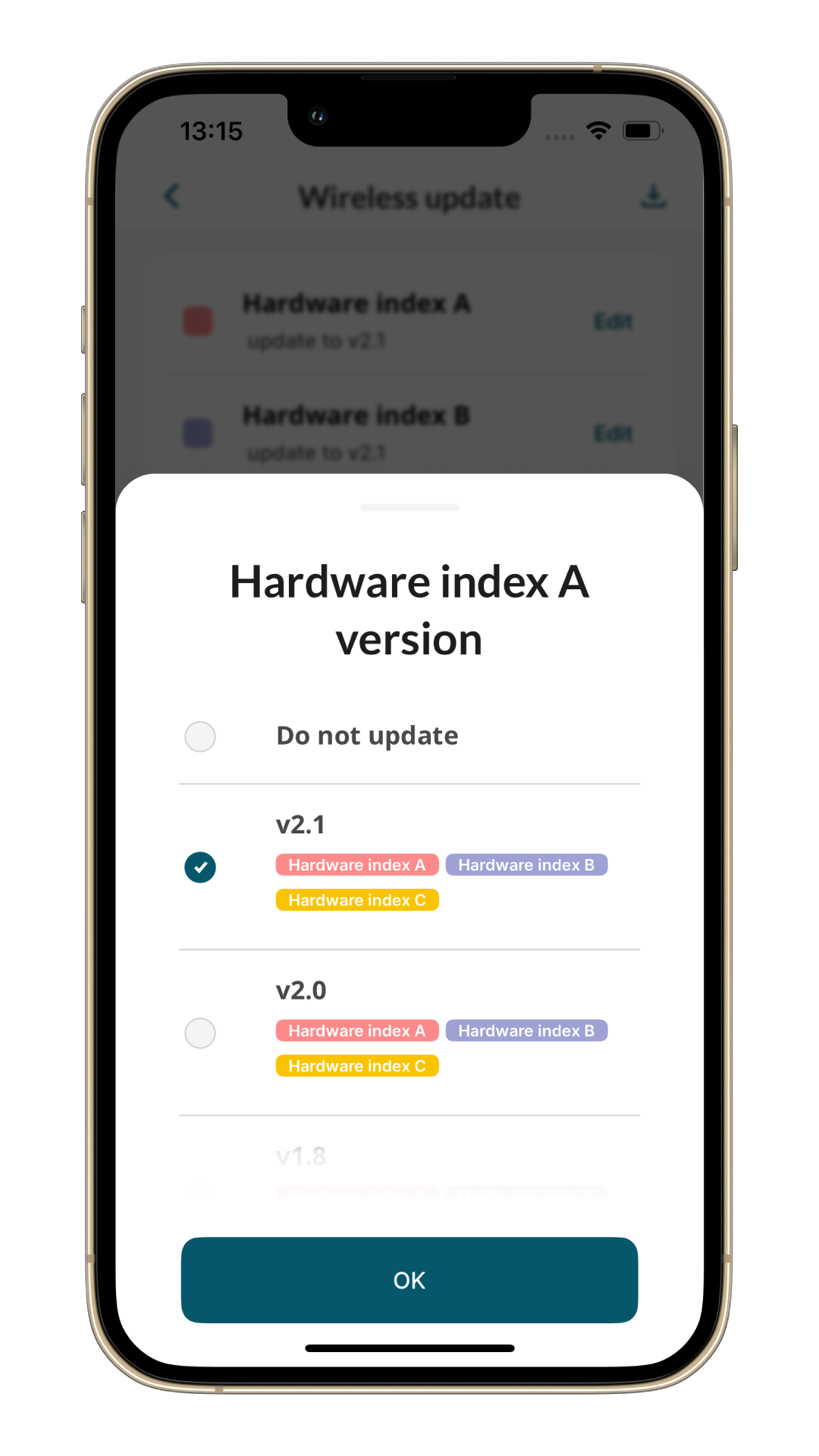
Finally, click on "Start update" to begin.
There are two types of OTA update depending on device firmware:
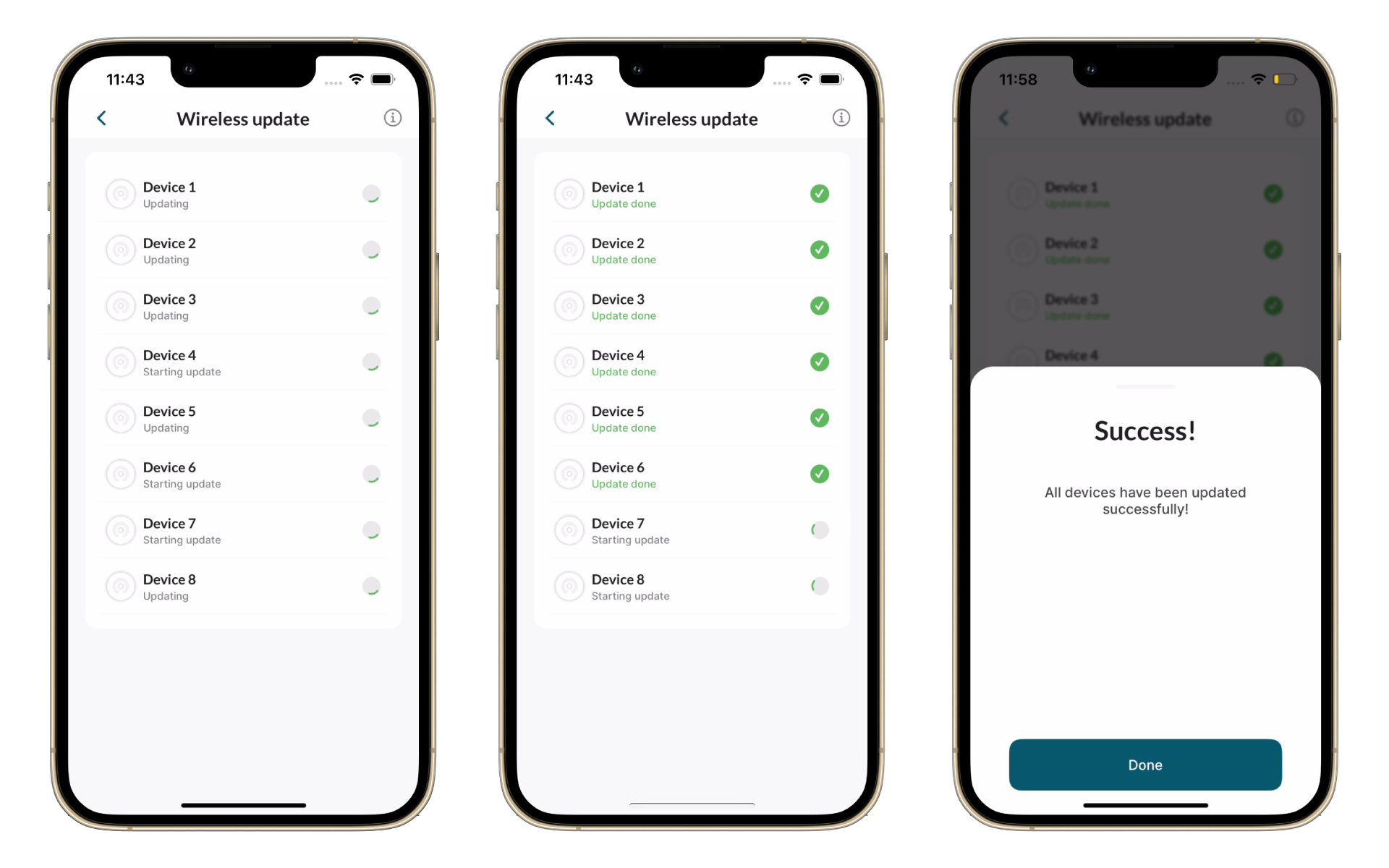
- Firmware v2.3 or newer – supports advanced OTA status tracking via a REST server on your mobile device.
- Older firmware (v2.0–v2.2) – does not send detailed status; instead, the app only sends a beacon for 2 minutes** and then performs a reset.
The retry button is always available if the update fails.
- Firmware v2.3+
- Firmware v2.0–v2.2
This advanced OTA update allows monitoring the exact moments when the sensor:
- connects to the access point,
- starts downloading firmware,
- begins the update,
- completes the update.
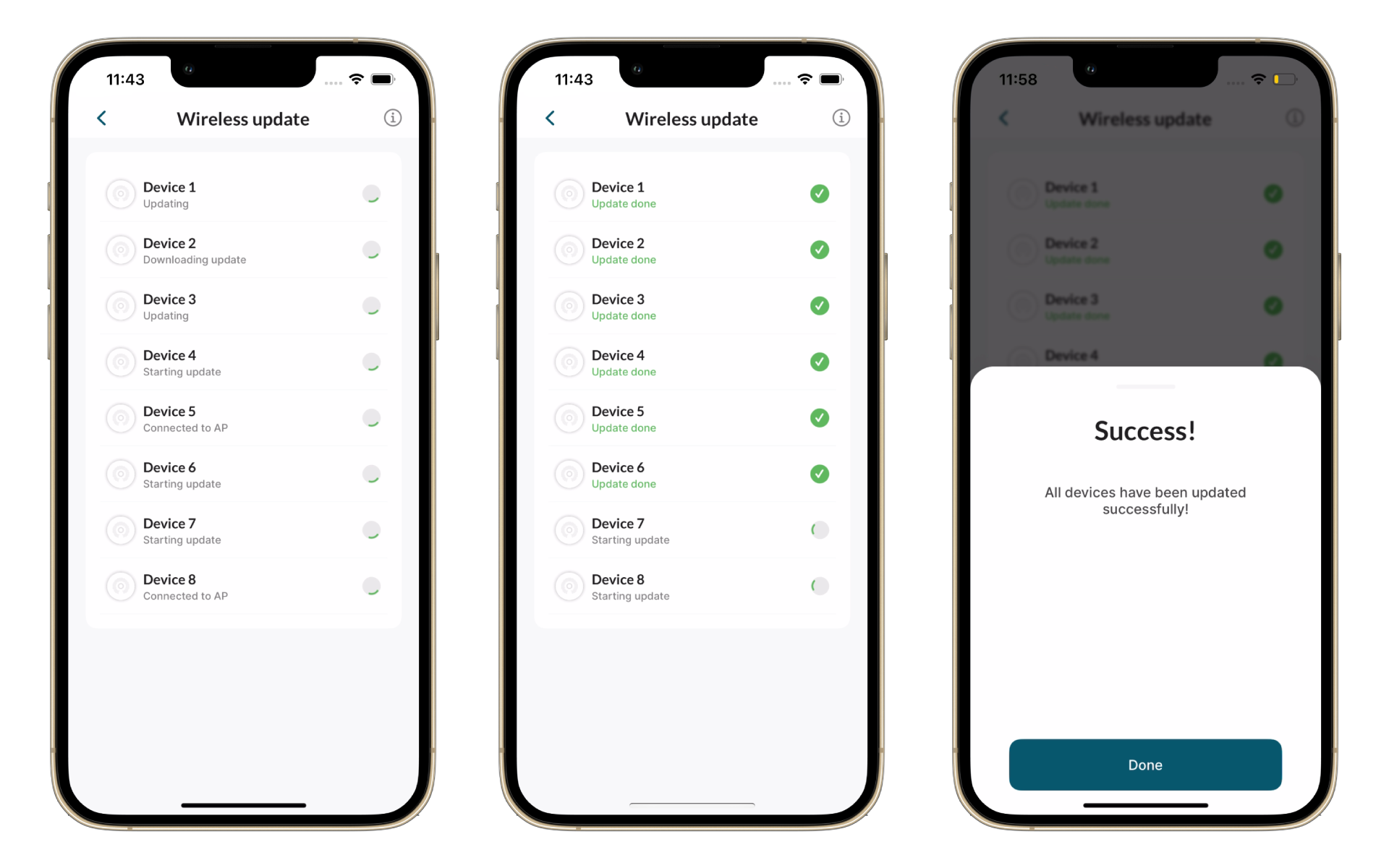
During update, an orange chasing animation is shown on the device. Once finished, the device will reboot. If the update fails, a red chasing animation will appear for an hour.
For versions between v2.0 and v2.2, the app only sends a beacon for 2 minutes and then performs a reset.
During update, an orange chasing animation is shown. Once finished, the device resets. If the update fails, the retry button can be used to attempt the update again.